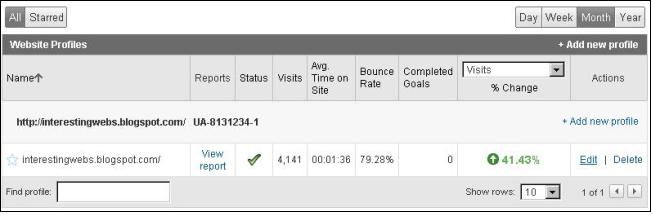
Showing posts with label Internet. Show all posts

Wednesday, July 27, 2011

Windows taskbar showing only one item per IE instance (not one per tab)

After I installed IE9 on Windows Server 2008, found that in Windows taskbar for Internet explorer are showed items for each open IE tab. If you are get used to showing only IE browser instances in Windows taskbar like me then you just found easy guide how to conifgure your IE to show only one item in Windows taskbar per instance.

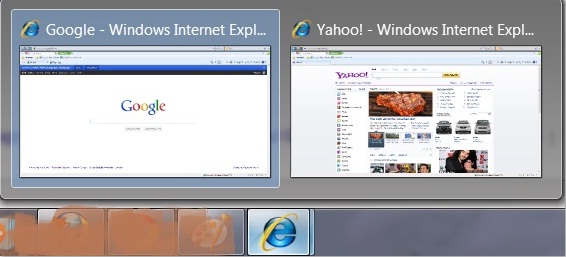
So, you have many tabs opened in Internet Explorer, and widnow taskbar display many previews, one for each opened tab. On image below, two instances of IE are opened, first instance have two opened tabs and another IE instance have one opened tab.

Windows taskbar preview for IE 9 with Show previews for individual tabs in taskbar option on


And you think it would be better if only one preview per instance of IE will be visible. In our example we want to have two previews (imagine what a mess will be if you have dozen of open tabs) for each IE instance one without tabs:

Windows taskbar preview for IE 9 without tabs


Solution:
  • Click the Tools option at the top right corner of your Internet Explorer browser window and then click on Internet Options

    Click the Tools option at the top right corner of your Internet Explorer browser window and then click on Internet Options


  • Internet Options --> General --> Tabs --> Settings

    In the Internet Options screen, under General tab, find Tabs category and click on the Settings button


  • uncheck option "show previews for individual tabs in the taskbar *", click OK and restart your Internet Explorer.
  • Tabbed browser settings


Now you configured your IE to show previews in Winodws taskbar only for each instance not for tabs.


Sunday, May 29, 2011

Top Seven Tools For Budding Webmasters

You’ve finally finished building your very first website and whether you built it from scratch or used a template from Wordpress or Joomla or some other CMS source, unfortunately your work is still not complete. Even if you’ve packed the site with thrilling content and wonderful writing and the design is impeccable, you’re still going to have to wade into the somewhat murky world of search engine optimisation if you want people to actually read it. This article will look at the very best tools to help you tweak your site for the search engines.


Before you do anything however, you’ll need to look into what keywords you should be targeting to get your site to rank well in the search engines. Whether you intend to run your own organic SEO campaign or go for Pay Per Click advertising you’ll still need to choose the right keywords before you do anything else and this is best done, initially at least with a pen and paper. Take half an hour to quickly note down all the search phrases you would use and the words you would type in if you were searching for a site like your own. Repeat the process for your competitor’s site and you’ll very soon have a decent list of search terms that will bring the right kind of traffic to your site.

 
Now you’re ready to start working on search engine optimization you’ll need to get to grips with some of the tools that will make your day to day work a bit easier. Here are seven which are popular with webmasters:


Google Analytics – Google provide Google Analytics for free, allowing site owners and webmasters to track the activity on their website and to study certain categories such as average time spent on the site, bounce rate, pages viewed per visit, page views and page hits. Google Analytics is invaluable in helping you to make sense of your site’s search traffic, the value of your keywords and the performance of your content.


Link Diagnosis – A popular tool for analysing links and link competition. Link analysis reports on link competition by giving you details of a competitor’s links. Link Diagnosis lists page rank and anchor text amongst other things, but is limited to use with the Firefox browser.

 
SEO Logs – SEO Logs offers a wide range of tools such as Keyword difficulty check, SEO optimizer, on-page SEO and Google tools for detecting any fake PR results. Also useful are the included HTTP headers and status check features, the back link analyser, the domain age checker, Adsense profit calculator and the ability to compare Alexa rankings.


Alexa – Alexa is another tool you should get to grips with. Alexa is used as a way of measuring websites’ popularity by using browsers toolbars. 


Key Complete – Key Complete is best used for working out a competitor’s keywords when conducting a PPC campaign. A useful online tool.


SEO Moz – One of the main tasks performed by SEOmoz is to detect any errors on your site, monitor and track your traffic and research keywords. Receives reports from search engines including Yahoo, Google and Alexa.


Widexl – Widexl is useful to help you understand link popularity and the pages that link to your website. In addition there is a Meta tag analyser which looks at keyword density, meta tags, page loading time and other similar SEO related details.

Alex is a blogger and seo consultant. He currently writes for the Bedouin Group on finance and the contracting sector, covering everything from mortgages to umbrella companies.


Tuesday, April 12, 2011

Email signature

How to create email signature for Outlook, Windows Live, Gmail or Yahoo Mail? In this short article you will find guidelines for adding signature to your mail.

How to create signature for Outlook

To learn how to add signature and for more information about signature in Outlook follow links:

Set Up Windows Live Hotmail Signature

Here is a link for Windows Live signature:

Add Yahoo mail signature

Links for implementing and changing Yahoo mail signature:

Adding a signature in Gmail

To implement a signature in Gmail follow links:


Monday, January 4, 2010

Do not count my visits in GA - cookies

Here is a guide how to exclude your visits from GA (Google Analytics) statistics with help of cookies. If you have static IP address you can learn how to exclude your IP address in google analytics by clicking this link. In linked article you can also find do you have static or dynamic IP address.


This tutorial for excluding your visits in GA is simpler than most other tutorials you can find on Internet about same topic. Main goal of this article is to help blogger users to count off their visits from GA records.


Exclude your own traffic from GA records with cookies


  • First go to web page you track with Google Analytics

  • copy code below and paste this code in address bar of you browser (don't forget to click enter)

    javascript:pageTracker._setVar('DoNotCount');alert('Cookie has been created')


  • With this line of code in browser address bar you will create cookie for visited site with content "DoNotCount" or other if you change colored text. If you want to check created cookie visit my article Check cookies on my computer


  • now you need to create filter


  • In your Google Analytics click Edit

    Edit in Google Analytics

  • Click Add filter in the Filters Applied to Profile box

    Add filter in Google Analytics


  • enter filter name, for filter type choose Custom filter, choose Exclude. For filter field choose User defined. For field pattern enter same text you set in javascript we paste in address bar (colored text, in our example: DoNotCount)

    Custom exclude filter for cookie in Google Analytics

  • now you need to wait few days and GA (Google analytics) will no more count your visits. This guide was tested on my blog and it works.

Thursday, November 19, 2009

Where are cookies stored on PC

Find where are cookies stored on your computer with IE, Firefox or Chrome internet browser. This article will guide you how to find and inspect cookies with help of your favorite internet browser. You can find instructions to find location of cookies for internet explorer, Mozilla Firefoox and Google Chrome.


Let's first explain what is cookie. Cookie is a message given to a web browser on client PC by a web server. The internet browser stores the message (cookie) in a text file. The message is then sent back to the server each time the browser requests a page from the server. The main purpose of cookies is to identify user.


Locate cookies with IE 8


  • In IE8 click Tools --> Internet options

    Tools - Internet options in IE 8
  • In General tab click Setting under browsing history

    Settings under browsing history in Internet options
  • Final step is to click "View files" button in Temporary Internet Files and History Settings window and directoy with cookies files will be opened.

Find cookies with Firefox


  • Click on Tools --> Options

    Tools - Options in Firefox
  • Click privacy tab, for drop down box choose Use custom settings for history

    How to show cookies in firefox
  • Click button "Show Cookies" and Cookies window will be displayed. There is search option, you can view details for specific cookies or remove selected cookie

    Firefox cookie window

Find stored cookies with Google Chrome


  • Inside Customize and control Google Chrome find and click Options
  • Select Under the Hood tab and click Show Cookies button

    Show cookies in Google Chrome options window
  • In cookies window you can search, inspect and remove cookies on your computer

Realed topics:
Show hidden files and folders on Windows 7

Thursday, October 8, 2009

Unfollow twitter user who do not follow you back

How to unfollow twitter users who do not follow me back? Why to follow twitter users who not follow you and how to do it? In main twitter application there is no simple way to find users who do not follow you. You can inspect your twitter users one by one but it is time consuming process. And now you ask yourself what is a simplest way to extract twitter users who do not follow you? In this article you will find answer on this question.


You can get list of twitter followers who abandoned you on your email or find it with help of web twitter application and unfollow them.


Manage twitter users who do not follow me back


Your Twitter Karma - this excellent web application allows you to manage your followers and users who follow you. You can get list of all followers or all users you follow.


For every twitter user there is:

  • user name

  • user image

  • information does user follow you

  • information does you follow user

  • last user activity


Thanks to those information, you can make decision what to do with each user individually. You can check twitter users you want to make some action on them and decide what to do with them.
Possible actions are:

  • Bulk follow - follow all checked twitter users

  • Bulk unfollow - stop follow all checked users

  • Bulk block - block all checked users


Twitter karma

There is web application friendorfollow with similar functionality but in my opinion Your Twitter Karma is far better choice.


Track twitter users who stop follow you back


NutshellMail - allow you to get mail summary for twitter every day (you can chose how often you would like to receive summary).


In this summary you get:

  • New Followers

  • New quitters

  • Send Tweets

  • Direct Messages,Retweets and @Replies

New quitters are twitter users who stop following you. This is the way to actively tracking your twitter account. With NutshellMail you can track and other social services such as facebook and Myspace.


Saturday, October 3, 2009

Force google reindex of site

You want to google reindex your web site as soon as possible? In this artcile you can found how google works, how do you know did google indexed your web page, how often does google reindex, how to tell google to (re)index your web page or site.


How google works


Googlebot is a web crawler that finds and crawl web pages. Googlebot sending a request to a web server for a specific web page, downloading the entire page, then handing it off to Google’s indexer. It request many different web pages simultaneously. When Googlebot fetches a web page, it collect all the hyperlinks appearing on the page and adds them to a queue for subsequent crawling. Those hyperlinks are crawled later, and hyperlinks from those pages are collected too. This technique is called deep crawling. Deep crawling allows Googlebot to probe deep within individual web sites.


Googlebot gives the indexer the full text of the web pages it finds. These pages are stored in Google’s index database. When user submit a query to Google Google's index database is used to return best web pages in google's result page.


How to know did Google indexed web page


To check did google (re)index a web page use "site:" search operator:
  • site:[URLOfWebPage]


Examples for checking did google re(index) a web site:
  • site:interestingwebs.blogspot.com

  • this Google query will return all pages on interestingwebs site which are indexed

  • in case you can't find some web page in result list, it can be concluded that this page is not indexed


Examples for checking did google re(index) a web page:
  • site:http://interestingwebs.blogspot.com/2009/06/tips-for-html-link-code.html

    Example of using Google site search operator

  • in case google return result you know web page is indexed

  • with this method you know if page is reindex only if title of web page is changed, for example if I changed title to "HTML code tips" and Google return "Tips for HTML code" I can know that web page is not yet reindexed (yet)

How often does google crawl


It depends on the web page. Some pages be crawled every hour, some pages every day and some pages every few weeks or months. Generally if it is consistently adding new content to web site or page have a lot of backlinks (links pointing to web page) google crawler will probably come back more often. Google don't index sites, Google index pages. So on same site one page can be crawled on daily basis while other on can be crawled once in the month. If you submit sitemaps regularly you can most likely speed up the Google crawling for your site.


Force google to reindex site


You can add your url on Google add url page and wait. When your URL is submitted, it is in google queue and google will index your site when it find appropriate. Unfortunately you can't force Google to crawl your site now and index the content.


Google add url web page

Saturday, September 26, 2009

What is twittering and best twitter apps

What is twittering?
Twitter is a free social networking and micro-blogging service that enables its users to send (twittering) and read messages known as tweets. Tweets are text-based posts of up to 140 characters in length. Updates (tweets) are displayed on the user's profile page and delivered to other users who have signed up to receive them. Twitter is often described as the "SMS of Internet".


Twittering example


  • Twitter user BlogAndSEO tweet message "Just write article about twittering"


  • when twitter user BlogAndSEO click on button update message is published (tweeted) and all 20 followers of user BlogAndSEO will see his message (tweet)

    Tweet a new message to twitter


  • Now, all followers see a new message, more followers more people see this message


Retweet - what it is and how to retweet


The retweet ("RT") allows Twitter users to share the best links, and tweets they find from others.


  • 20 people see message of user BlogAndSEO because he have 20 followers, but in case one of the twitter followers retweet this message, let's say user the_gman all of the_gman followers will see BlogAndSEO's message, and hey, the_gman have 92521 followers!!!

  • the_gman send this message : "RT @BlogAndSEO: Just write article about twittering"

  • Twitter user BlogAndSEO benefit from retweet because the_gman have many followers

Short guide how to retweet

RT @OriginalPoster: RetweetedMessage


Retweet example
RT @BlogAndSEO: Just write article about twittering


How to know you have been retweeted


Go to web address http://www.retweetist.com/users/. Enter the user name and you will get last 30 day retweets for entered twitter user. This is how you can track your retweets.


Retweets web application

Manage twitter followers


Twitter followers are twitter users who follow your messages. One of the methods to increase number of twitter followers is to follow other twitter users. Because you follow twitter user there is a chance that he will follow you back, specially if you share common interest with him.


To find and follow twitter users by tag use : wefollow application.
Enter tag and you will get twitter users who have most followers and twittering about chosen tag.


Twubble - can help expand number of people you follow — it searches twitter friend graph and picks out people who you may like to follow


Mycleenr - sort twitter friends by time of their last tweets. It can be used to easily delete inactive users from friend (following) list


Just Tweet It - directories with twitter users, very useful. You can add yourself to one of this directories to get more followers. You can find Twitter Tools Directory also.


Twitter buttons - if you have your own web site or blog you can put a twitter button which link on your twitter account. This is one more way to get more twitter followers. On site Twitter buttons you can find some interesting twitter buttons.


Tweeting links


You want to put hyperlink in tweet. Don't worry, it is enough to write URL and twitter will automatically convert it to linkable short URL.


Example:
Text entered in twitter:

just write new article about making your own strip http://interestingwebs.blogspot.com/2009/09/make-your-own-comic-strip-online.html

Posted twitter message:

just write new article about making your own strip http://bit.ly/17K9F1

For those who want more control with links in tweets I suggest tinyURL web site.


This is useful in case:
  • you want to write fully 140 character tweet and don't have enough space, make tiny URL before posting tweet and save space for more text

  • you want decide to how you tiny URL text will look like (for example http://tinyurl.com/comicweb for original url http://interestingwebs.blogspot.com/2009/09/make-your-own-comic-strip-online.html)

Twitter hashtags


The twitter hashtag is used to designate topics or categories of information in tweet. A hashtag is a way for others to find information about your keywords even if they are not following you.


Format for hashtag: #WORD
Hashtag example: #blogspot

When you have tweet with hashtag, twitter users can click on hashtag (it is linkable) word and see last tweets which have this hashtag. For example if you click on this #blogspot hashtag you will find last real-time tweet results containing #blogspot hashtag.


Monday, September 7, 2009

Make your own comic strip online

Do you know that you can easily make your own comic on web. And you don't need to be artist. There is a strip generator on web. You can use made characters and just dragging those characters in your strip or make your own characters. You can add bubbles with text inside it (speech balloons), different objects and shapes.

stripgenerator.com is very funny and easy to use. I believe that stripgenerator is one of the best comic generators on web. My rate is excellent. Try and see!

Let's see a comic I maked in 15 minutes:


Make a strip

What can be done with strip generator


  • use existing drawings of humans, beings, objects, shapes and bubbles


  • easy drag end drop of existing objects to strip


  • add speech balloons and enter your text


  • change size and rotating existing objects


  • add and remove frames


  • generate a custom character


  • embedding comics in other web pages


  • searh strip gallery...


Guide to make your own strip (comic book) online


  • go on stripgenerator.com


  • click on "Create strip"


  • drag & drop objects in frames and make your own comic


  • you can use character generator to create your custom made characters

    Character generator on strip generator


  • you can embed strip with copy & paste code in embed text box

On stripgenerator page you can publish your strip blog, leave messages on their forum, search last strip blogs...


Wednesday, September 2, 2009

No tooltip bug in Firefox 3.5

After upgrading firefox to 3.5.2 version I noticed that there is no tooltips. Tooltips are missing and instead of missing tooltip there was small white rectangle cursor box. I found solution for this problem with a help of google.


It is no tooltip bug (or blank tooltip bug) in Firefox 3.5. Solution is to uninstall and reinstall the latest version of Google toolbar for Firefox. To be sure that problem is in Google Toolbar try to start Firefox in safe mode. If Firefox in safe mode properly display tootips then source of problem is in one of the add-ons (probably Google Toolbar for Firefox)


To uninstall Google toolbar for Firefox click Tools-->Add-ons, choose on Google toolbar and click Uninstall


Uninstall google toolbar

This article refer to no tooltip bug or blank tooltip bug in Firefox 3.5.


Monday, June 22, 2009

How to create online survey

Believe or not, making survey on internet is very easy. Here you will find brief step by step tutorial how to create your own web survey (poll) with help of Google docs forms. After online survey is make and published visitors can fill poll and their responses are automatically added to your online spreadsheet. Google docs are really useful and easy to use tool. Here you can see example of online survey.

Sample Google Docs online survey:

Sample online survey (poll) created with Google Docs forms

Creating online survey
  • First go to Google docs and log in

    • to successfully log in you must have Google Account

    • in case you do not have Google Account go to Google Accounts

  • Go to menu "New" and click on "Form"

    Choose new form in Google Docs

  • In the form template that opens, you can add any questions and options you'd like

    • Enter title and description

    • Enter Question title

    • Choose question type

    • Question type can be:

      • Text

      • Paragraph text

      • Multiple Choice

        Editing multiple choice in Google Docs forms


      • Checkboxes

      • Choose from a list

      • Scale


    • Choose whether or not to make it a required question

    • Now you can add new question, (to get a new question, click the “Add Question” button at the top left of the page) or save and publish your survey

    • You can change Theme if you like

    • You can email the form (survey) to people, which allows them to fill it out and submit it right from their email, embed survey into your site or blog (it didn't work on my blog) or place a link to survey on your site

    • You can review responses as:

      • summary


      • spreadsheet


You can use summary to display results or process data in spreadsheet. It is your choice. I find this Google tool very impressive and user friendly. My recommendation to everyone is to take a look at Google Docs and explore their functionality.


Step by step guide to create sample online survey:

  • In Google Docs go to menu "New" and click on "Form"

  • Enter title "Test survey"

  • Enter description "This survey is for testing and demonstrating purpose"

  • Enter Question title "1. Enter your name?"

  • Click on Add question button and choose "Paragraph text"

  • Enter Question title "2. Please tell us your opinion about this tutorial"

  • Click on Add question button and choose "Multiple choice"

  • Enter Question title "3. Do you find this tutorial useful?"

  • In Option 1 enter "Yes"

  • In Option 2 enter "No"

  • Click on Done

  • Click Save

Monday, May 25, 2009

Top 10 things you can do with Wolfram Alpha

After some research of Wolfram examples I have find those 10 most interesting examples to share with the world. Some examples are useful and some are interesting. Examples are sorted by relevance. First example is most interesting and so on.


  1. Get data about recent earthquakes - really impressive, you can see earthquakes in world map in last 24 hours (or broader time interval) by magnitude.

    Example : earthquakes

    To see you need to type earthquakes in wolfram alpha


  2. Earthquakes in wolfram


  3. Get salary data for a given occupation - Enter word salary and occupation. You will get salary data for entered occupation (median wage, history, people employeed ...).

    Example : salary progammer


  4. Generate report for life expectancy - You will get median life expectancy, highest(with country)life expectancy, and lowest life expectancy. There are also life expectancy rankings by countries and more demographics data


  5. Example :

    • life expectancy

    • life expectancy in Andora


  6. Rank countries - you can rank countries by some criteria


  7. Example :

    • 5 richest countries

    • 5 poorest country


    You get first 5 countries by GDP per capita, by GDP and by poverty fraction.

    5 richest coutries by wolfram


  8. Country comparison - compare two countries (by location, area, demographic data, economic)

    Example: America, India


  9. Find the definition of a word - enter definition and word you want to define

    Example: define soldier

    Result: soldier - serve as a soldier in the military


  10. Find words matching a pattern - write word and with exchanged letters with low line. This can be very helpful if you can't remember the word.

    Example: _oun_e_

    Wolfram will return:

    b | o | u | n | c | e | r
    b | o | u | n | c | e | s
    b | o | u | n | d | e | d
    b | o | u | n | d | e | n
    b | o | u | n | d | e | r
    c | o | u | n | s | e | l
    c | o | u | n | t | e | d
    c | o | u | n | t | e | r...


  11. Find anagrams of word - type "anagrams" and desired word

    Example : smart

    Wolfram will return : marts and trams


  12. Compute a time difference - type Date to Date and you will get time difference.

    Example: Mar 21, 2009 to Sep 7, 2009


  13. Wolfram alpha return 5 months 17 days

  14. Do a mortgage computation - you can calculate monthly payments, mortgage totals and payments and balances. Very nice.

    Example: mortgage 100,000 Euros, 7%, 25 years

    Principal and interest in wolfram


Wolfram Alpha (also written WolframAlpha and Wolfram Alpha) is an answer-engine. It is an online service that answers factual queries directly by computing the answer from structured data, rather than providing a list of documents or web pages that might contain the answer as a search engine might.

My main objection on Wolfram Alpha is that I couldn't find list for some term. For example I wanted to get list of all occupations but didn't find a way. If you enter pharmacist in Wolfram it knows that it is occupation. Same thing for animals, dinosaurs...

Of course Wolfram Alpha can do many other things but those I found most interesting.


Wednesday, April 15, 2009

jQuery don't work but there is no error message

I installed IE 8 and take a look at cool new features. Everything seemed nice, but then I noticed that in my article with jQuery examples my demos which using jQuery code not working. It worked well in Firefox, Chrome and Internet Explorer 7. Compatibility view does not help. There was no error message but nothing happened when clicked on button which fired jQuery code. Testing html pages on my local computer with jQuery code don't work too.

i tried to go on jQuery documentation in Internet explorer 8 but couldn't find a working demo. But with other browsers same page have a properly working demo.

There are examples of web pages which uses jQuery and doesn't work well in IE 8 (without throwing error) but worked on other browsers:


Does jQuery work on Internet Explorer 8?


Yes! It looked like IE 8 is a source of problem but it is not.

Security setting is a reason why jQuery doesn't work. Active scripting must be enabled. It was disabled and because problem listed in this article appeared.

To enable Active scripting:

Click Tools --> Internet Options --> Security tab

Select Internet zone (world globe) --> Click Custom level

Internet options - Security tab

Click on Enable Active Scripting and clik OK.

Enable Active Scripting

Tuesday, April 14, 2009

IE developer tools - integrated in IE 8

Do you want to debug jscript, inspect and edit HTML code directly from web browser?
Internet Explorer 8 includes tools that Web developers need to efficiently debug
their sites directly in Internet Explorer. Developers can debug a site's HTML, CSS, and Microsoft® JScript from within Internet Explorer 8 (with developer tools), rather than switch between Internet Explorer and a separate development environment.
This article give a brief review why and how to use IE 8 developer tools.

Why use Developer tools?

You may want to quickly debug JScript, investigate a behavior specific to Internet Explorer, or test a new design or try solutions to a problem. In these and similar scenarios, Internet Explorer 8 includes easy-to-use Developer tools that have a few important characteristics:

  • Integrated and simple to use - An instance of the Developer Tools comes with every installation of Internet Explorer 8. This enables debugging on any machine running Internet Explorer 8. In addition, the tools only load when needed to limit the impact of the tools on browser performance.

  • Provide a visual interface to the platform - Instead of reverse engineering how your site works or modifying your site to output debug information, the Developer Tools let you look into Internet Explorer to view its representation of your site.

  • Enable fast experimentation - When prototyping a new design or testing fixes in previous versions of Internet Explorer, you likely edit your source, save it, refresh your page in the browser, and repeat. The Internet Explorer 8 Developer Tools streamline this scenario by letting you edit your site within the browser and see changes take effect immediately.

  • Optimize application performance - Identifying and fixing performance issues is usually an iterative approach done by focusing on one scenario at a time. With the Internet Explorer 8 Developer Tools script Profiler, you can collect statistics like execution time and number of times a JScript function was called as you test your application and use the profile report to quickly identify and fix performance bottlenecks.


How to use Developer Tools

To begin using developer tools, click the Developer Tools icon in the Tools drop down menu (or press SHIFT+F12):

Enable Developer tool in IE 8

The Developer Tools have three modes: HTML, CSS, and Script. Each mode provides tools for inspecting and debugging that content type.

HTML mode

HTML mode lets you explore the DOM tree exactly as it exists in Internet Explorer. The DOM tree lists elements as well as attributes and values.
For example we can go on www.google.com. Open Developer Tools and choose HTML tab.
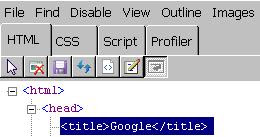
HTML tag in developer toolbar in IE 8

Clicking an attribute or value makes it editable. If we click on title and change "Google" to "My Google Test" after removing focus from the editable value commits the change back to Internet Explorer and causes the page to update immediately.
Now title bar text is "My Google Test".

IE 8 changed title bar


To visual select an element, enable Select Element by Click (first icon (arrow) or CRTL + b) and click any area of the site.
In example below "Select Element by Click" is clicked (1) and then is clicked on Advanced Search (2). In the end Text is edited to "Advanced Search Test" (3).

Select element by click


The Layout tab displays a visual representation of the box model and corresponding values for the selected element:


Layout tab in IE 8


  • The offset values display the distance to the parent object as defined by the offsetLeft and offsetTop properties

  • The margin, border, and padding values display corresponding values specified by the author

  • The innermost values are the element's height and width as defined by the offsetHeight and offsetWidth properties<(li>


The Style tab and Trace Style tab are very similar. Style tab lists all style rules that apply to the selected element in cascade order, with overruled styles struck through while in Trace Style styles are grouped by property instead of by rule. This makes the computed value of a property immediately visible. So we can say that Style view is inverse of Trace Style.

Example of Style view:

IE 8 developer tools with selected Style tab

Example of Trace Style view on same HTML element:
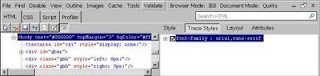
Developer tools in IE 8 with selected Trace Styles

CSS mode


In CSS mode, choose any CSS file used on the site to view an expandable tree view of all style rules in the file.


Example of JScript debugging with developer tools in IE 8

To see how to debug java script code in IE 8 you can go on test page with IE 8 and follow instructions :

  1. Turn on Developer tools (press F12)


  2. Click on Script tab


  3. Insert breakpoint on line 10


  4. Debug jscript with developer tools in IE 8 - Script tag and breakpoint

  5. Click "Start Debugging"

    • To debug currently running script sessions that started with script debugging disabled, Internet Explorer must first refresh the page. Before refreshing, Internet Explorer displays a dialog box asking if users want to refresh or cancel.


  6. Click on button "Call function".

    • Button Call function calling jscript function "calculate"


    Click on Call function

  7. Now you are in debug mode. Click on tab Locals and you will see that value of variable is 1.


  8. Click on icon Step Into (F11) Next line to execute current line of jscript code and go on next

    • Step into - Executes the next line of script and pauses, even if the next line is inside a new method. (Keyboard shortcut: F11)

    • Step over - Executes the next line of script, continues until the next line of script in the current method, and then pauses. (Keyboard shortcut: F8)

    • Step Out - Continues executing script until the next line in the method that called the current method. (Keyboard shortcut: SHIFT+F11)

    • Continue - Continue running script without pausing until hitting another breakpoint (if any are set).(Keyboard shortcut: F5)

    • Break All: - Pause execution before the next script statement to be executed


  9. Now you are at line 11. Take a look at Locals and you will see that i has value 11 (this is because line 10 : i = i + 10, so 11 = 1 + 10)

    • The Locals tab within Script mode displays the name, value, and type of all variables available in the current execution scope. So with help of Locals tab you can track values of variables.
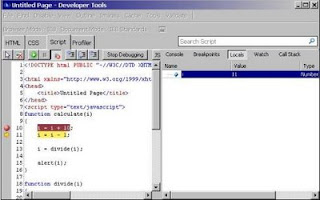
    Debuggin in IE 8 - Locals tab


  10. Go to line 11, move mouse pointer to i, right click and choose "Add Watch". You can see that variable "i" is added in Watch tab.


  11. Add Watch

    • Use the Locals pane to view local variables and the Watch pane to monitor a custom list of variables. You can add variables to this list by right-clicking in the source and clicking Add Watch or typing the variable name in the Watch pane.


  12. Click on Call Stack pane and you should see that "JScript - onclick function" fired "calculate" function.


  13. After two more steps (click "Step Into" two times), function "calculate" called function "divide", we are at line 20 inside function "divide". Call Stack pane provides a list of execution contexts : divide is called by calculate which is called by "JScript - onclick function"


  14. Debugging jscript - Call stack pane

    • To jump to any stack item, double-click the item. The debugger will bring that method into view in the Primary Content Pane. On the picture calculate function is clicked in Call Stack pane (call to divide function line 20 is highlighted in green color)


Profiler

The Profiler gives you data on the amount of time spent in each of your site's JScript methods. Since you can start and stop the JScript Profiler at any time during application execution, you can collect multiple profile data for the specific scenario that interests you.
Let's see on example:
  1. Go on test page with IE 8, choose profiler pane and click on button "Start profiling"

  2. On test web page click button "Call function"


  3. Click on Call function

  4. Clik Ok to close Message Box


  5. Click Stop Profiling in Profiler Pane


  6. Now we have list of functions and their spent of time. Function divide is very simple so it takes 0 ms. Function calculate takes time needed to click Ok on message box. Even onclick is event that fired function calculate. Maybe this is not best example but it is good enough to understand main concept of Profiler.

    Profiling with IE 8 developer tools

    The profile reports can be viewed with either the Functions or the Call Tree view, which can be selected from the Current View drop-down list.

    - The Functions view lists all the functions used

    - The Call Tree view provides the hierarchy of calls


Related articles on this blog:
New features in Internet Explorer 8


Related articles from other sources:
Discovering Internet Explorer 8 Developer Tools on MSDN


Sunday, April 5, 2009

New features in Internet Explorer 8

Windows Internet Explorer 8 (abbreviated IE8) is the latest web browser developed by Microsoft. The Internet Explorer 8 is out, and clearly there have been some big advances since IE 7.

You can ask yourself : Why do I want to use Internet explorer 8?
The answer may be : because of new features and improvements.

So let's see new features:


  • Integrated developer tools


  • Do you want to debug jscript, inspect and edit HTML code directly from web browser? Now developers can debug a site's HTML, CSS, and Microsoft® JScript from within Internet Explorer 8 (with developer tools), rather than switch between Internet Explorer and a separate development environment. Developer tool exists in early versions of IE as a add-in, now it is integrated in IE 8. If you want to know more about developer tools visit article How to improve efficiency in web design with IE 8.


  • Increased performance


  • Internet Explorer 8 includes many performance improvements that contribute to a faster, more responsive web browsing experience in the areas that matter most. Internet Explorer 8 starts quickly, loads pages fast and instantly gets you started on what you want to do next with a powerful new tab page. In addition, the script engine in Internet Explorer 8 is significantly faster than in previous versions, minimizing the load time for webpages based on JavaScript or Asynchronous JavaScript and XML (AJAX).

    Google has commented on IE8 Beta 1 improvements (IE 8 team claim that Internet Explorer 8 is even faster since then):

    "Some of the tests we have done show pure JScript performance improvements up to 2.5 times. We also measured the performance gains on common Gmail operations, like loading the inbox (34%), opening a conversation (45%) and opening a thread (27%) compared to IE7."

    For more details about Internet Explorer 8 performance see article IE8 Performance.

    Microsoft published a report “Measuring the Performance of Browsers”. Published document explain the various benchmarking components and how they impact the performance, document also outline how to setup their own benchmarking environment to test browser performance. For further details Measuring the Performance of Browsers is available for download over the Microsoft download Website. Below is a result for first five webs from report "Measuring the Performance of Browsers".


    Summary of Browser Load Times (in seconds)

    Website

    Chrome 1.0

    Firefox 3.05

    IE 8

    google.com

    0.28

    0.22

    0.20

    yahoo.com

    2.15

    1.30

    1.32

    live.com

    3.48

    3.42

    3.40

    msn.com

    0.55

    0.97

    0.83

    youtube.com

    3.07

    2.80

    2.55


    If you don't believe Microsoft you should take a look at independent article Beta Browser Battle 2: Page-load times.


  • Accelerators


  • The new Accelerators in Internet Explorer 8 help you quickly perform your everyday browsing tasks without navigating to other websites to get things done. Simply highlight text from any web page, and then click on the blue Accelerator icon that appears above your selection to obtain driving directions, translate and define words, email content to others, search with ease, and more.

    For example you can use easily call accelerator Translate with Live Search in few clicks and get translated web page without navigating to Live Search page. You just need right click on visited web page, choose "Translate with Live Search", choose language and you will get translated page.

    Sample of using accelerator Translate with Live search

    You can find list of accelerators that you might want to add to your IE8 with their brief description here:


    Firefox users can find implementation of IE8 Activities (now called Accelerators) as Firefox Add-on which is near direct replication of Accelerators.


  • Enhanced navigation


    • Compatibility View

    • Internet Explorer 8 is a new release and some websites may not yet be ready for Internet Explorer 8. Click the Compatibility View toolbar button to display the website as viewed in Internet Explorer 7, which will correct display problems like misaligned text, images, or text boxes. This option is on a per site basis and all other sites will continue to display with Internet Explorer 8 functionality.

      Microsoft has provided a list of web sites that are most likely to be displayed better in Compatibility View in Windows Internet Explorer 8. This list have over 3,000 web sites.

      When users install Windows Internet Explorer 8, they have a choice about opting in to a list of sites that will be displayed in Compatibility View. Sites are listed on the Compatibility View list in response to feedback from other Internet Explorer 8 customers. Specifically, the feedback is based on the high-volume sites for which other users clicked the Compatibility View button. This list updates automatically and helps users who are not Web-savvy have a better experience with Web sites that are not yet Internet Explorer 8-ready.

    • Enhanced Tabbed Browsing

    • Internet Explorer 8 introduces Tab Groups, which make tabbed browsing easier. When one tab is opened from another, the new tab is placed next to the originating tab and color coded, so that you can quickly see which tabs have related content. If you close a tab that's part of a group, another tab from the same group is displayed, enabling you to remain within the context of the current task rather than suddenly looking at an unrelated site.

      Example of grouped tabs in IE 8

    • Better Find On Page


    • The toolbar is integrated below the tab row, so that it does not obscure any content on the page. Instead of waiting for you to type an entire search term and hit Enter, the toolbar searches character-by-character as you type. Matches are highlighted in yellow on the page so that they're easy to identify.

    • Smarter Address Bar


    • Type a few characters in the new Address Bar and Internet Explorer 8 will automatically recall sites you've already visited based on your entry. It searches across your History, Favorites, and RSS Feeds, displaying matches from the website address or any part of the URL. As you type, matched characters are highlighted in blue so you can identify them at a glance. In addition, you can delete any address in the drop-down box by clicking on the red X. This is especially useful for getting rid of misspelled URLs.


    • Improved Zoom


    • Adaptive Page Zoom improves upon traditional zoom-in/zoom-out functionality in the browser by intelligently relaying out the page content and eliminating the need to scroll left and right. This will improve your ability to magnify pages with small fonts and be able to read more on the web.


  • Improved favorites and history management


    • Enhanced Favorites Bar


    • Now there's a better place to keep track of your top favorites. You can save Favorites, RSS Feeds, and Web Slices to the Favorites bar that appears across the top of the browser, quickly navigating to the sites and content that you care about most.

      Favorites bar in IE 8


    • One Click Favorites


    • Press the One Click Add to Favorites bar button and immediately add the page you're browsing to the Favorites Bar, saving you extra clicks.

    • RSS feeds on Favorites bar


    • The Favorites bar has been updated so you can drag an RSS feed to your Favorites bar, making it easier to see when important feeds are updated.

    • History sorting


    • The new Browsing History view allows you to sort your history by Site Name, Most Visited Sites, Order Visited Today, and Date, making it easier to organize and locate sites in your history.

    • History searching


    • In Internet Explorer 8, you can search for pages in history by typing keywords, making it easier to locate sites when browsing your history.


  • Instant search


    • Search suggestions


    • The new search capabilities in Internet Explorer 8 will offer relevant suggestions as you type words into the search box to help save time. Click on a suggestion at any time to immediately execute the search without having to type the entire word or phrase.

    • Visual search


    • Internet Explorer 8 is partnering with top search providers like Live Search, Wikipedia, Yahoo, Amazon, and more to deliver "visual search" images that provide you with immediate answers. For example, typing "Obama" with Live Search will instantly show you a preview of the current weather directly in the Search Box drop-down. You can choose providers with click on "Find more providers". In picture bellow Wikipedia visual search is selected.

      Visual search in internet explorer 8


  • Web Slices


  • Using Web Slices, you can keep up with frequently updated sites directly from the new Favorites Bar. If a Web Slice is available on a page, a green Web Slices icon will appear in the upper-right hand corner of the browser. In this moment ebay site uses web slices. Click on this icon to easily subscribe and add the Web Slices to the Favorites Bar so you can keep track of that "slice" of the web.

    Add web slice from ebay

    After Web Slices is added you can click Web Slice on Favorites Bar to preview relevant information without visits web site. In example on those two pictures user track bids for laptop with help of Web Slice.

    Web Slice in favorites bar


  • Automatic crash recovery


  • If a website or add-on causes a tab to crash in Internet Explorer 8, only that tab is affected. The browser itself remains stable and other tabs remain unaffected, thereby minimizing any disruption to your browsing experience.
    If one or more of your tabs unexpectedly closes or crashes, your tabs are automatically reloaded and you are returned to the site you were on before the crash.


  • Browse privately


    • InPrivate Browsing


    • When checking e-mail at an Internet cafĂ© or shopping for a gift on a family PC, you don't want to leave any trace of specific web browsing activity. InPrivate Browsing in Internet Explorer 8 helps prevent your browsing history, temporary Internet files, form data, cookies, and usernames and passwords from being retained by the browser, leaving no evidence of your browsing or search history.

      You can start InPrivate Browsing by opening a new tab and selecting Browse with InPrivate or selecting it from the Safety button on the top right corner of the browser window. Once you complete this action, Internet Explorer 8 will launch a new browser session that won't record any information, including searches or webpage visits. To end your InPrivate Browsing session, simply close the browser window.

      Firefox fans can use Private Browsing 1.2.0 which enables not only private no history browsing, but the ability to clear certain, part or all of browsing history when closing Firefox. This will work in Firefox 3.0.8, however the Beta build of Firefox 3.1 has Private Browsing built right in.

    • InPrivate Filtering


    • Today websites increasingly pull content in from multiple sources, providing tremendous value to consumer and sites alike. Users are often not aware that some content, images, ads and analytics are being provided from third party websites or that these websites have the ability to potentially track their behavior across multiple websites. InPrivate Filtering provides users an added level of control and choice about the information that third party websites can potentially use to track browsing activity.

      InPrivate Filtering is off by default and must be enabled on a per-session basis. To use this feature, select InPrivate Filtering from the Safety menu. To access and manage different filtering options for Internet Explorer 8, select InPrivate Filtering Settings from the Safety menu. To end your InPrivate Browsing session, simply close the browser window.

For Firefox users I recommend very interested article Duplicate IE 8 Features in FireFox 3.

Related articles on this blog:
IE developer tools - integrated in IE 8


Related articles from other sources:
Microsoft Internet Explorer 8: the good the bad and the ugly