
Friday, March 18, 2011

Blogger and AdSense

Blogger provides a simple way to make money with AdSense. Blogspot requests access to your AdSense account in order to allow creating and placing ad code on blogger page through layouts and template tools. If you don't have an AdSense account, you can sign up for it right from Blogger. Enter a valid email address, choose a password, fill in some contact information and then Blogger will register your account for you right away. If you do have an account already, just use the "sign in" link instead.

Where to put AdSense ad units on blogger for best results?

For this question check the heat map. One of the most commented positions is AdSense unit just below post title. Find more about this position on the end of this article.

If you want to learn from my own experience how to increase AdSense Click Through Rate follow the link.

    There are two ways to put Google AdSense ad inside your blogspot blog:

  • 1. create AdSense ads directly through blogger
  • 2. create AdSense ads through Google AdSense site and place ad code inside HTML/jscript gadget

First method is simpler to implement but in my opinion second method is better because when you create AdSense ad code through Google AdSense interface you have more powerful methods to track performance of every specific AdSense ad and find way to optimize it.

Create AdSense ads directly through blogger

    There are three various methods to create AdSense ad units in blogger:

  • using Monetize tab, Customize/Add Ads

  • using AdSense gadget

  • using configure blog posts screen


Using Monetize tab, Customize/Add Ads
    The most simplest method to add AdSense ads to blogger is to:

  • go to Monetize tab in your blogger interface

  • under AdSense overview tab click Customize/Add Ads link

    Google AdSense overview on blogger


  • now, you just need to pick one of four option that best suit your needs. Options are: display ads in sidebar and posts, display ads in sidebar or Display ads below posts
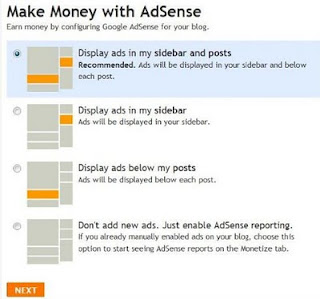
    Configure Google AdSense for Blogger


  • after last step you have installed Google AdSense ads on your blogger blog


Using AdSense gadget
    Another option is to place AdSense ads through blogger AdSense gadgets:

  • Go to Design tab, click Page elements and pick Add a gadget box where you want to add AdSense ad in Edit Layout window

    Edit layout to add AdSense ad in your blog


  • In Add a gadget window select AdSense gadget


  • In Configure AdSense window pick AdSense format and color and click on Save

    Configure AdSense on blogger


  • after you finished listed actions you have new AdSense ad unit on your blogger blog
Using configure blog posts screen

For those who want to show ads between posts answer is to go to Template --> Page Elements tab. Then, in the Blog Post section, click on "Edit".

Edit blog post for adding AdSense ad unit appear after a post title


In configure blog posts screen there is a Show Ads Between Posts check box, you can check this check box and choose format and color of AdSense ad unit.

Configure blog posts to show AdSense ads between posts


Create AdSense ads through Google AdSense site and use AdSense generated ad code on blogger

You can generate AdSense ad unit on AdSense site and paste generated code on your blogspot blog.

After you copy AdSense code you can easy paste AdSense ad unit code in HTML Javascript gadget where you want Adsense unit to appear.

But Gadgets in Blogger Design mode in some cases will not achieve all your requirements. What if you want AdSense ad unit to appear after a post title?.

To make Adsense appear after post title on individual Post follow this link. In linked article is described how to add AdSense unit code by changing blogger template.


Wednesday, March 16, 2011

Create AdSense ads with AdSense interface

In this short article you can learn how to create AdSense ads through AdSense web page.

    Follow next steps:

  • First click My ads tab and click New ad unit button


    AdSense new ad unit button


    • On Create new ad unit screen pick a:

    • name for AdSense unit


    • size (300 x 250 Medium Rectangle, 336 x 280 Large Rectangle) ...


    • ad type (text or image/rich media ads)


    • ad style


    • custom channels (custom channels allow you to track the performance of specific groups of ad units.)


    • backup ads - the ads that you'd prefer to show when Google has no targeted ads available.

      AdSense create new ad unit


  • click Save and get code button, get code and paste on your web site

Saturday, February 26, 2011

How to track specific AdSense ad

Let's say you have a web site and three AdSense ad unit on your site. You take a look at Google AdSense page to track how well your Ad Sense ads are clicked. With a few clicks you determine summary of clicks and money earned in time interval but you want to find results for each AdSense ad unit individually.

In this short tutorial you can learn to find out how many clicks or earnings get every specific (unique) AdSense ad on your site. On new Google AdSense start page visitor can easily find out how many clicks get all his AdSense ads, but it is also possible to get clicks per specific AdSense ad.

Example in article is based on presumption you want to define number of clicks of BigForBottom AdSense ad unit and that BigForBottom is created through AdSense interface (to create AdSense ad through AdSense interface go to My Ads --> Ad units --> New ad unit).

Web page with three AdSense ad units


    To determine clicks on unique AdSense ad you should:

  • go to new Google AdSense web interface

  • Click menu item My ads --> Custom channels

    Google AdSense Custom channel


  • on Content > Custom channels frame click New custom channel

    AdSense New custom channel button


  • In Add new custom channel box enter name of custom channel and add AdUnit you want to track through this Channel unit and save it - for example on picture is created BottomBig channel and BigForBottom ad unit is added to BottomBig channel


    Add New Custom Channel Box


  • After those steps you can track clicks and earning for specific Ad unit, in example you can follow number of clicks of BigForBottom through BottomBig channel. You can make multiple channels for each AdSense ad unit


  • next day after you create channel you can get Performance report for that channel, click Performance reports tab and than click Custom channel

    Performance report for custom channel


  • Next step is to choose channel to see performance chart and click button Chart, in the example BottomBig channel is checked and chart for only AdSense ad BigForBottom is generated

    Choose Google AdSense performance channel


This is only one of tips you need to know to increase Google AdSense earnings.


Monday, February 14, 2011

Tips for increase google adsense earnings

In this article you will find a few tips to increase adsense earnings on your web site. To earn more adsense money first get focus on size type of ad units. After you pick your AdSense ad format size you must to decide where to place AdSense Ads. Also, you must track how well your Google AdSense units perform.

Best choose of Google AdSense Ad Formats

It is wise choice to pick some of recommended ad formats.

    Best performing AdSense formarts are:
  • 300 x 250 - Medium Rectangle
  • 336 x 280 - Large Rectangle
  • 728 x 90 - Leaderboard
  • 160 x 600 - Wide Scyscraper

Listed AdSense ad formats perform more click through rate then other ad formats. Did you know that 300x250 medium rectangle typically performs much better in terms of revenue than a 250x250 square. Optimize for AdSense means to earn as much as you potentially could.

So, in Google AdSense interface choose one of recommended AdSense unit size as on the image:

AdSense chooser for size


Here are how best performing AdSense ad formats appear:

300 x 250 - Medium Rectangle


336 x 280 - Large Rectangle


728 x 90 - Leaderboard (click to see real size)


160 x 600 - Wide Scyscraper (click to see in real size)


You can watch short movie about this topic:


Best location for Google AdSense ads

If you want to learn from my own experience in increasing AdSense Click Through Rate follow the link.

Heat map illustrates the ideal placing on a sample layout. Certain locations tend to be more successful than others. The colors fade from dark orange (strongest performance) to light yellow (weakest performance). Ads located above the fold tend to perform better than those below the fold. Ads placed near rich content and navigational aids usually do well because users are focused on those areas of a page.

What is above the fold? - used for describing the part of an Internet document that you see without moving the page downward. It is considered the most important part of the page because everyone who goes to that document sees it.

Definition of below-the-fold : used for describing the part of an internet document that you cannot see without moving the page downwards. It is considered the less important part of the page.


AdSense Position Heat Map


Optimize the AdSense ads on blog

To increase the likelihood that your readers will see and click on your Google AdSense ads, blend your ad units into the background of your blog. Choose a bold color for the ad title to help draw attention to your ads and be sure that the background and borders of your ads are the same color as the background of the area where the ad is placed. You can find more tips for AdSense on blogger by following this link.


Saturday, February 5, 2011

Show and view hidden folders and files on Windows 7

Some folders on Windows 7 are hidden by default. For example you can't find folder Usere\[UserName]\AppData. No, this folder is not missing it is just hidden. In this guide you will find brief step by step tutorial how to find, show and access hidden folders and files.
    To view hidden files and folders you need:

  • open windows explorer

  • click on the Organize button and then select "Folder and Search Options" from the menu

  • Choose View tab

  • under View tab click "Show hidden files and folders" in the list
    Folder Options - show hidden folders an files
Now you can see hidden folders on your PC.
This article is answer on questions:

  • How to find folder MSOCache
  • Can't find folder ProgramData
  • Folder Program Files\Uninstall Information is missing
  • Where is C:\Users\Public\Favorites
  • Can't find C:\Users\Public\Libraries
  • How to access C:\Users\Public\Desktop
  • Show C:\Windows\Globalization\MCT folder - for this you need to check Hide operating system files


Related topics:
Where you can find cookies on PC